EUM Data Units
All MIKE Zero products use a standard library of data units, called the Engineering Unit Management (EUM) library. This allows you to change the displayed units for any value that is included in the library.
Every parameter in MIKE SHE has been added to the EUM library and to change the displayed unit, you must know the EUM Data Type. In most cases, the EUM Data Type is displayed in the fly-over text when you put your mouse cursor in the text field. Alternatively, all items in the online help (F1) list the EUM Data Type in the table at the beginning of the section.
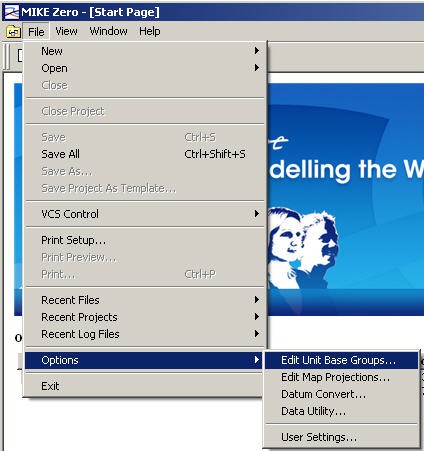
To change the display units of any EUM Data Type, you must close all open documents and then select ’Options/Edit Unit Base Groups...’ from the File pull down menu
When you select this menu item, the Unit Base Group Editing dialogue appears. By default all of the data units for each active module are displayed. For a clearer overview of the data types, close all of the model engines that are not relevant.
Next select the data item that you want to change the units of. Then select the new units from the combo-box list of available units.
After you have changed the data units, click ’Save and Close’. This saves your changes to the default Unit Base Groups (.ubg) file, which is read every time you open a model.
C:\\Program Files\\Common Files\\DHI\\MIKEZero\\MIKEZero.ubg
Note
If you have already added data to your model, changing the Unit Base Group will not convert any of your data. This process simply changes the displayed units in the user interface and the conversion factors used to make the input files internally consistent.
In some cases, the relevant data item name is not clear, as there may be several data items with similar names. This is more likely to occur if several modules are selected at the same time. To find out which data item is correct, close the dialogue and reopen your model. Then move the mouse to the relevant text box, where a fly-over text box should appear telling you what is the relevant data type for this field. Alternatively, for gridded data, you can use the Create button to create a data file and then notice the data type that is displayed in the dialogue.
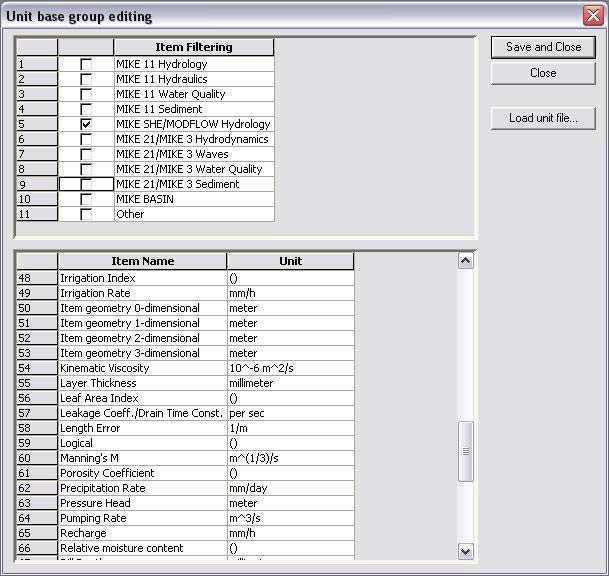
Finally, occasionally, you may find that the data unit that you are looking for is not available. In this case, contact your local Technical Support Centre, who should forward your request to the developer for inclusion in the next release.
1. Changing from SI to Imperial (American) data units.
The default Unit Base Groups (.ubg) file is read every time you open a model.
C:\\Program Files\\Common Files\\DHI\\MIKEZero\\MIKEZero.ubg
In the same directory there are two standard Unit Base Group files:
MIKEZero_Default_Units.ubg

MIKEZero_US_Units.ubg
The first is the default file and contains standard SI units for all data items in all of the MIKE Zero products. The second contains standard Imperial (US) units for most data items in all of the MIKE Zero products.
To change the display units for all of your data items to Imperial units, load the MIKEZero_US_Units.ubg file, Save and Close the dialogue and then reopen your model.
If you want to change individual data items to SI or Imperial, you can change the items individually. Then use the Save and Close button to save your changes back to the MIKEZero.ubg file. If you want to create special unit versions, then you can copy the MIKEZero.ubg to a different file name and reload it.
2. Restoring the default units
You can return to your default unit specification at any time, by Loading either of the default .ubg files:
MIKEZero_Default_Units.ubg

MIKEZero_US_Units.ubg
which are found in the
C:\\Program Files\\Common Files\\DHI\\MIKEZero\\ directory.
Note
If you want to save any of your model specific changes, then you should first save the MIKEZero.ubg to a new name.
3. Changing the EUM data type of a Parameter
When you create a .dfs0 or .dfs2 parameter file, you must also define the EUM data type for each parameter in the file. When you assign a .dfs0 or a .dfs2 file to a parameter value, then MIKE SHE automatically verifies that the correct EUM data type is being used. If the wrong data type is present, then you will not be able to select OK in the file browser dialogue.
For example, in the following set of dialogues, an Evapotranspiration time series was selected instead of the correct Precipitation time series file.
The first error is in the Select Item tab, where there is a message that no Valid Items are found.
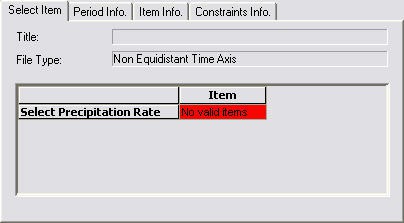
The find out why there is no valid items, you should look in the Constraints Info tab:
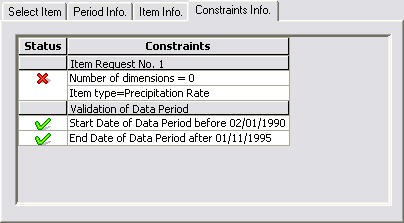
Here you can see that the Item type is supposed to be Precipitation Rate, but this constraint has failed.
To find out what the Item Type of the selected file is, look at the Item Info tab:
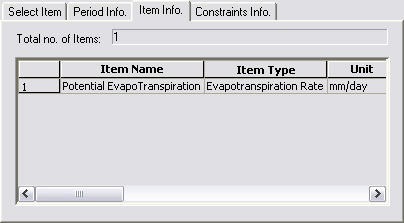
where you can see that the current Item Type is Evapotranspiration Rate. The next two sections outline how to change the EUM Type of an existing file.
a. Changing the EUM Type of a .dfs0 Parameter
To change the EUM Data Type of a parameter in a .dfs0 file, open the time series in the Time Series Editor and then select the Properties... item from the Edit drop down menu.
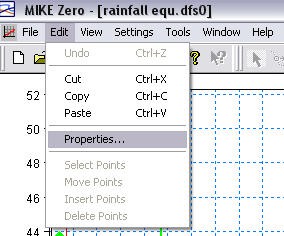
This opens the item properties dialogue
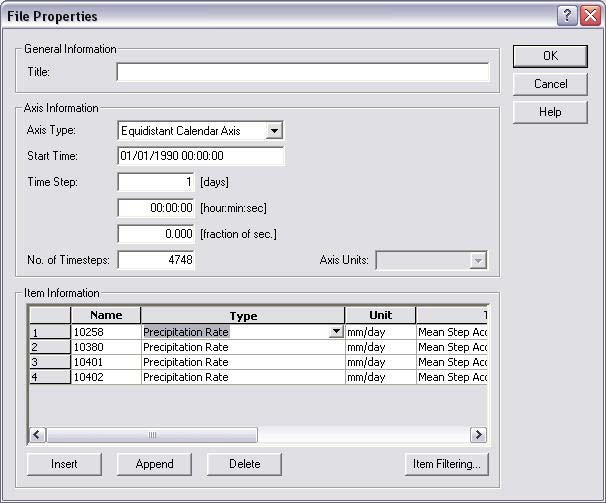
where you can change the EUM Type and the EUM Unit that is assigned for each time series in the file.
b. Changing the EUM Type of a .dfs2 Parameter
To change the EUM Data Type of a parameter in a .dfs2 file, open the grid file in the Grid Editor and then select the Items... item from the Edit drop down menu
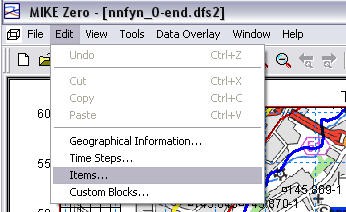
This will open the Edit Properties dialogue for the Grid Editor
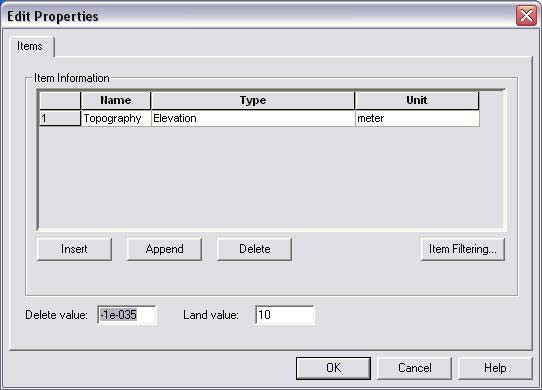
where you can change the EUM Type and the associated data EUM Unit of the item.